
Critical Information: Full access to DegenScan’s powerful features requires an active subscription or valid license key. While the extension can be installed for free, you’ll need to purchase a plan from our website to unlock its full potential.
Prerequisites
Before embarking on your DegenScan journey, ensure you have the following:Google Chrome
Version 88 or later
Internet Connection
Stable broadband connection
DegenScan Account
Active paid subscription
Supported OS
Windows 10+, macOS 10.14+, or Linux
RPC Required
A solana blockchain RPC is required to scan tokens.
Installation Process
Follow these steps to install DegenScan and unleash its full potential:Purchase a Subscription
- Visit the DegenScan website
- Connect you wallet to create an account, this is the wallet that your subscriptions will be paid out to
- Purchase a subscription plan that suits your needs
- Complete the purchase process
- You can now visit the dashboard and view your extension credentials
Install the Chrome Extension
- Open Google Chrome
- Navigate to the DegenScan Chrome Web Store page
- Click the “Add to Chrome” button
- In the confirmation pop-up, click “Add extension”
DegenScan requires certain permissions to function properly. Review these carefully before proceeding.
Authenticate Your DegenScan Account
- Locate the DegenScan icon in your Chrome toolbar
- Click the icon to open the DegenScan sidebar
- Pin the extension for easy toggle access
- You’ll be prompted to log in
- Enter the email and password from your dashboard
- Start scanning away
Configure Your Settings
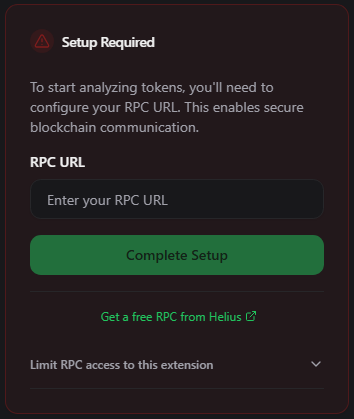
Connection Settings
Connection Settings
- Navigate to “Settings” in the DegenScan sidebar
- Under “Connection Settings”, configure your:
- RPC URL (mainnet) - You can get one from Helius
- Limit RPC access settings
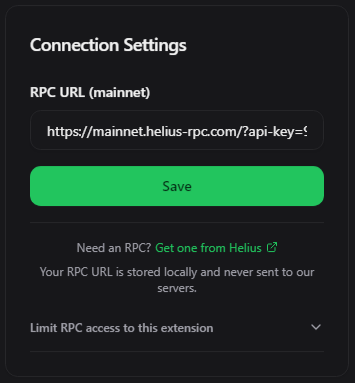
Your RPC URL is stored locally and never sent to our servers.
Feed Privacy Settings
Feed Privacy Settings
Configure your privacy preferences: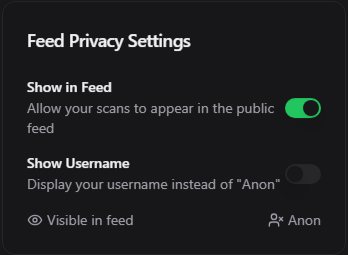
- Show in Feed: Toggle to allow your scans to appear in the public feed
- Show Username: Choose to display your username instead of “Anon”
Theme Customization
Theme Customization
Personalize your DegenScan experience: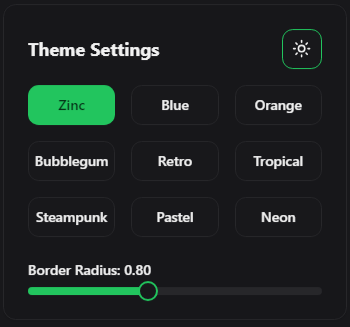
- Choose from multiple theme options:
- Zinc
- Blue
- Orange
- Bubblegum
- Retro
- Tropical
- Steampunk
- Pastel
- Neon
- Adjust Border Radius (0-1.00)
Troubleshooting
If you encounter any issues during the installation or activation process, try these solutions:Extension Not Appearing in Chrome
Extension Not Appearing in Chrome
- Type
chrome://extensionsin your address bar - Ensure DegenScan is listed and enabled
- If not, try reinstalling the extension
Unable to Log In to DegenScan
Unable to Log In to DegenScan
- Verify your internet connection
- Double-check your account credentials
- Clear your browser cache and cookies
Features Not Loading
Features Not Loading
- Ensure your subscription is active
- Check for any browser extensions that might be interfering
- Try disabling your ad-blocker for the DegenScan domain
- Restart your browser
Next Steps
Congratulations on successfully installing DegenScan! Here’s what you can do next to maximize your crypto analysis potential:Affiliate Program
Earn rewards by inviting friends to join DegenScan
Global Leaderboard
Earn rewards by inviting friends to join DegenScan